Completing and Posting DSRs
After a DSR has been entered, it should be posted or completed. In order for a DSR to be posted or completed, it must balance.
Note: Completing and then posting DSRs (as opposed to simply posting) is a way to use a two-tiered permissioning system for processing DSRs. Such a system would typically have a person completing the DSR who does not have permission to post it; then a manager who has the permission, would review the completed DSR before posting it. Completed but unposted DSRs appear in a list available by selecting DSRs from the Batch Posting menu.
When you select the Post button, the following occurs:
-
The system verifies whether the debits and credits are equal (that is, whether the DSR balances). If it does not balance, a message similar to the following displays:
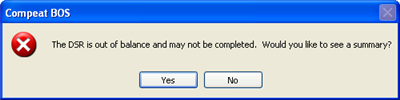
If you select No, you are prompted to correct the DSR before posting and returned to editing the DSR. If you select Yes, you are prompted to correct the DSR before posting, then taken to a summary screen that shows the debits and credits, similar to the following:
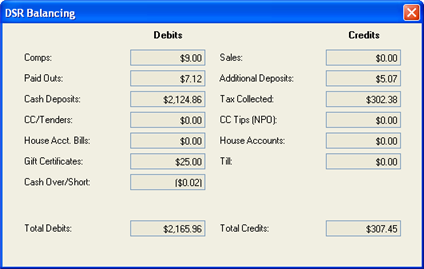
This screen shows the breakdown of the debits and credits for the DSR all on one screen to assist in identifying out-of-balance problems.
-
Compeat verifies whether there are labor figures entered for all of the time periods used by the restaurant (if the "Use Labor" box is checked in the Other Accounts tab of the DSR Definitions screen).
For example, if the restaurant sells lunch and dinner and you only entered dinner labor figures on the Labor tab, Compeat will warn you that lunch labor information is missing. If you are completing the DSR, you will not be given an option to edit the DSR when this warning appears, it simply displays. If you are posting the DSR when this warning appears, you will be given the option to continue posting, or return to the DSR screen and make any needed edits.
-
Compeat calculates the sales tax amount and verifies it against the sales tax amounts you entered on the Taxes & Receipts tab. If they do not exactly match, you will be warned and asked if you want to continue or not. If you continue, the difference will be posted to the Sales Tax Difference account defined on the Sales Tax tab of the DSR Definitions screen. If you select not to continue, you will be returned to the unposted the DSR, where you can make any needed edits.
-
You are asked to confirm that you wish to post the DSR. If you select Yes, the DSR will be posted; if you select No, you can continue editing the DSR and post it later.
You can batch post multiple DSRs using the Batch Posting screen. Only one user at a time can batch post DSRs.
-
You are notified when the DSR has successfully posted. At this point, you can no longer edit or delete a posted DSR. You are then prompted to print a DSR register.
Voiding a DSR
A posted DSR can be voided using the Void DSR utility. Once a DSR has been posted, it cannot be directly edited; however, you can void the original DSR, edit it and then re-post using the Void DSR utility.