Click to view/hide picture.
Use Copy Inventory to copy the Restaurant Inventory Items from one restaurant to one or more other restaurants.
Note: This screen can be also be used to copy settings from the Inventory Information tab of the Prep Items screen.
By default, when you copy, the following fields are copied:
Inventory unit
Purchase unit description
Par levels
Whether the item is inventoried
Whether the item is a hot item
You can optionally specify to copy the location information (the location and position associated with each item) and the vendor information (only the vendor name and item code, not any dates and cost amounts).
You can copy a range of inventory items, a single level of inventory items, or a combination of both. For example, you may specify to copy items 500– 800 that are in the level 1 category Dairy.
Click to view/hide picture.
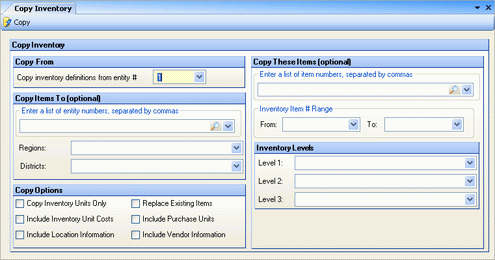
Specify the following fields:
Copy inventory definitions from entity # Enter the source restaurant whose information will be copied.
Enter a list of entity numbers, separated by commas Enter the destination restaurants where the information will be copied. You can only copy to restaurants that you have security access to.
[Store Groups] Optionally specify store groups to receive the copied inventory, if using Enterprise Definitions.
Enter a list of item numbers separated by commas Optionally specify a comma-delimited list of inventory items to copy to another restaurant; leave blank to copy all items. Typically you will either specify a value in this field or in the Inventory Number Range field.
Inventory Item # Range Optionally specify a range of inventory item numbers to copy to the destination restaurant; leave blank to copy all items. Typically you will either specify a value in this field or in the Enter a list of inventory item #s field.
Note: If you specify both a list of inventory items and a range, Compeat will copy only those items that meet both criteria. For example, if you specify item 400 and items in the range 700-800, no items will be copied, because no items meet both criteria. You could specify item 702 and items in the range 700-800; in this case, Compeat will only copy item 702.
Inventory Levels Optionally specify a level of inventory items to copy to the destination restaurant.
Copy Inventory Units Only For all the matching items in the target restaurant, this option will update their inventory units, for consistency's sake. This checkbox does not prevent you from copying prep items.
Include Inventory Unit Costs Specify whether each inventory item's unit cost, as defined on the Restaurant Inventory Item screen, should be copied to the destination restaurant.
Include Location Information Specify whether each inventory item’s location information should be copied to the destination restaurant.
Replace Existing Items Specify whether to overwrite existing inventory items in the destination restaurant with the information from the source restaurant.
Note: When copying items from one restaurant to another, the destination restaurant’s inventory file is not cleared before the source restaurant’s items are copied; therefore, if the destination item has defined restaurant information for items that the source restaurant has not, these items will not be removed.
Include Purchase Units Specify whether each inventory item’s purchase unit information should be copied to the destination restaurant.
Include Vendor Information Specify whether each inventory item’s vendor information (only the vendor name, item code, and preferred status, not any dates and cost amounts) should be copied to the destination restaurant.