Daily Report Subscriptions allow you to auto-generate an email to subscribed users with an entity’s Daily Sales, General Notes and Maintenance Notes.
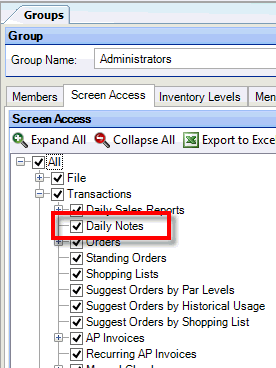
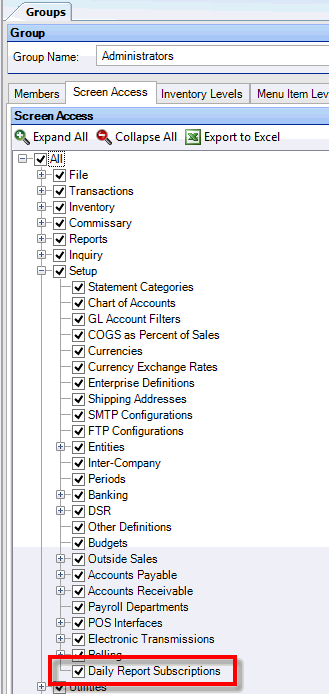
First, ensure the appropriate Groups have Security Access to this Feature. The two main components are Transactions > Daily Notes & Setup > Daily Reports Subscriptions
Second, any User who wishes to receive the Daily Report Subscriptions must have an email address included in their User record. For more information see Users in Setup > Security > Users.
Note: Only the Security Administrator of your Organization has access to update these records.
A separate SMTP Configuration may need to be setup for the outgoing Daily Reports Emails. To add a new SMPT Configuration navigate to Setup SMTP Configurations.
A Total Sales GL Account Filter should also be created. This way the Daily Email will include Daily Sales instead of one particular category of Sales. To create a new GL Account Filter navigate to Setup > GL Accounts Filters.
Note: Sales will report as they are originally polled, i.e. if your DSR polls Net sales, they will show as Net, and if you poll Gross sales, they will show as Gross. It’s not currently possible to add comp accounts to the GL Account Filter, for this feature, and have them reduce Gross sales to Net.
In Enterprise Definitions there is a tab for Subscription Setup. This is where you will select the GL Account Filter you just created, the new SMTP Configuration as well as a Send Time. The Send Time you choose will have to be after your DSRs poll into Compeat.
Tip: Do not include a re-send time unless you want to receive 2 emails daily.
The final step in the setup process is to choose the users who wish to receive the Daily Emails as well as what information they’d like to see included. See Daily Reports Subscriptions for more information.
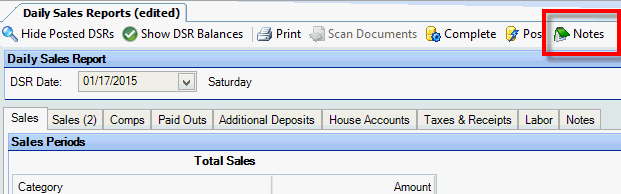
Now that you have completed the setup, you can begin entering additional information in your DSRs. There is a Notes button in the header of the DSR. This is where managers will be able to add both General Notes about their days sales and operations as well as any maintenance notes.
Finally, if a user doesn’t receive the initial daily email there is an option to Re-Send this email in Utilities > Re-send Daily Reports. Select the Date of the DSR and the user you wish to re-send to. If you leave the user field blank, the email will be re-sent to all users subscribed.