If you do not already have UPCs associated with your inventory items (defined in Restaurant Inventory Items), you can scan the UPCs in Compeat Mobile and assign them to items.
Open Cts by Barcode screen.
Select a location from the drop-down list.
Scan a barcode.
If the system does not recognize it, you will be asked if you want to assign the UPC to and item. Select Yes.
You will be taken to the Assign UPC screen. Click on an item in the Item Description list to associate it with the UPC. Then click Next to continue.
The next screen will allow you to select whether to assign the bar code as either an Inventory Unit or Purchase Unit Restaurant Inventory Item. Select one and then click OK.
If the item you selected exists in multiple positions in the same location, you will be prompted to select a position.
After you have assigned a UPC to an item and transferred the data back to Compeat Advantage, the UPC will be added to the Bar Codes tab.
You can add items to locations by using the Counts by Barcode feature.
To do this, open a Counts by Barcode screen, and select the location you wish to add an item to. Then, scan the item you wish to add. You will be prompted to add the item.
This new item/location relationship will be used in Compeat Advantage once you resynchronize.
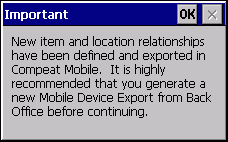
You should generally resynchronize with Compeat Advantage after making any changes to item/location relationships. If you export a file that has new item/location relationships and do not resynchronize with Compeat Advantage, you will be warned when you next open a barcode screen.
The only situation in which you would not want to resynchronize, is if you unintentionally generated an export file, for example by closing Compeat Mobile.
Note: skip this section if...you do not use Compeat Mobile to assign barcodes or if you adhere to the recommendations that you not edit inventory counts or items in Compeat Advantage while a hand-held is out and do not use multiple hand-helds in the same location. See Suggestions for Success.
If you create a new item/location relationship— that is, assign an item to a location—in either two hand-helds or on a hand-held and Compeat while a hand-held is out, the system will not know if it is an accidental duplication of the same item or if the item in fact exists in two different spots in the same location.
For example, if you are using two mobile computers and scan Jack Daniels in each of two mobile computers and add it to the Bar location, when you import from the first hand-held (into Compeat), "Bar" will be added to the list of Locations in the Jack Daniels Restaurant Inventory Items screen. This is the "first occurrence" of the item/location. On the second occurrence, when you import data from the second mobile computer, the system will recognize that a new item/location relationship for Jack Daniels/Bar is trying to be imported, but now the relationship already exists in Compeat and the system has no way of knowing if the same item was accidentally scanned by both hand-helds or if the item exists in two separate places in the bar.
The way the system deals with this will differ depending on whether you are in additive or overwrite mode (see Export Options).
In additive mode, quantities are simply added to the counts for the first occurrence of the item/location.
In overwrite mode, quantities will be discarded from the second occurrence of the item/location and a message will display the items that were not successfully imported.