Select an empty cell (in an Excel spreadsheet) where you want to place the function.
Click on fx in the function bar.
Select CompeatXL.FinancialFunctions from the drop-down menu of the Insert Functions screen.
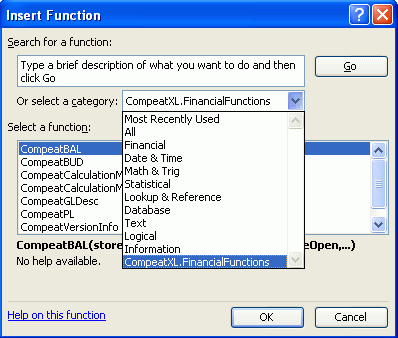
Select the desired function from the "Select a function" list.
Click OK.
You may see a dialog box similar to the following:
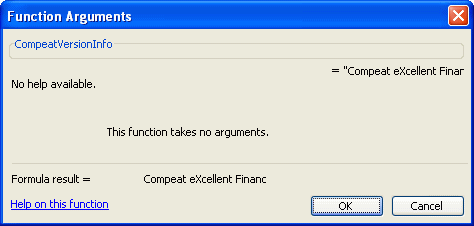
Click OK to proceed.
The function will be placed in the selected cell.
Enter the function parameter(s), separated by commas, within opening and closing parentheses after the function. For example, the GLDesc function takes a parameter of Account #, so it would be written as GLDesc("100101"). Parameters are listed in the help topic for each function.
Press Enter to run the function. You will be prompted to login the first time you run a function. On the login dialog, you can specify to adjust the number of calculations performed by the Fast Recalculate feature.